How to Make a Budget in Google Sheets (Free Template, 2026)

By Tapabrata Biswas · Updated July 4, 2026 · 12 min read
Researched with AI assistance, reviewed and edited by Tapabrata Biswas.
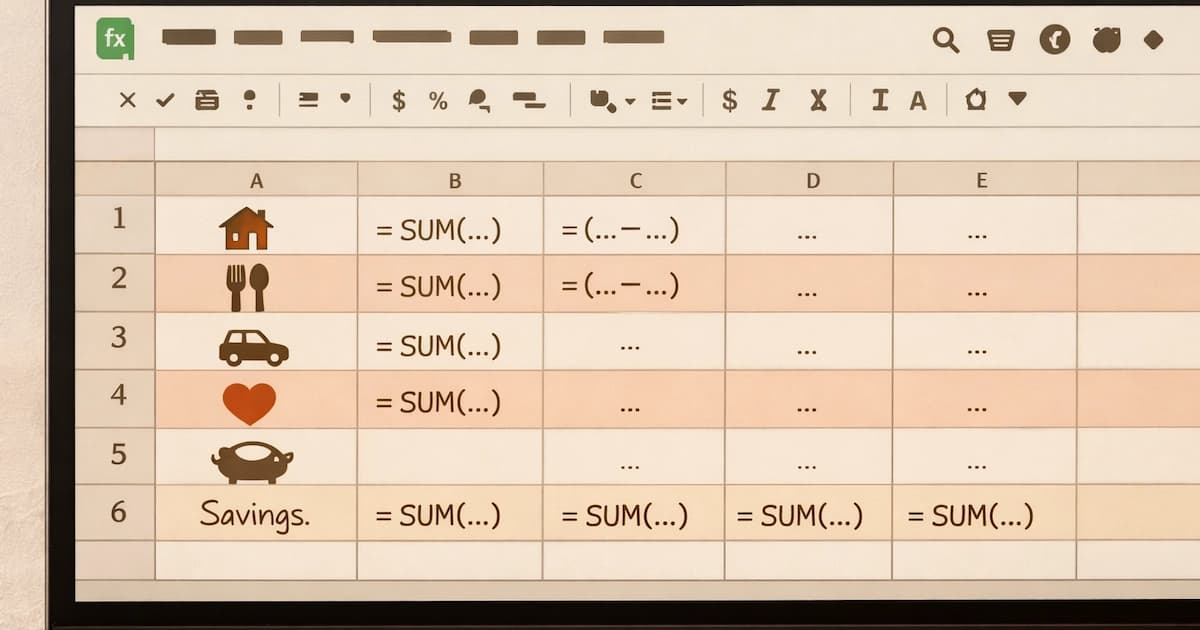
A working Google Sheets budget needs three tabs and five formulas, and takes about 30 minutes to build from a blank sheet. There are really three ways in: copy Google's own free template, copy our ready-made one, or build your own from scratch so you understand every cell. This guide covers all three. It gives you the exact gallery path to the built-in template, a copy link to ours, then walks the from-scratch build step by step, with the formulas laid out to copy and paste, and it all works the same in rupees or dollars.
Google Sheets stays one of the most popular do-it-yourself budgeting tools for good reasons: it costs nothing, runs in any browser, syncs across your devices, and never asks for your bank login. The one trade-off is that you enter transactions yourself. The habit of doing that, more than any formula, is what separates a budget that gets used from one that goes stale.
The fastest route: Google's built-in budget template
If you want a working budget in under five minutes, you do not have to build anything. Google Sheets ships with a free one.
On a computer, open the Google Sheets home page, click Template gallery in the top right, scroll to the Personal section, and choose Monthly budget (there is an Annual budget next to it for a full-year view). It opens as a finished sheet with two tabs: a Summary tab that shows planned versus actual income and expenses with a starting balance, and a Transactions tab where you log each purchase and pick its category from a built-in dropdown. Enter your planned amounts, add transactions as they happen, and the Summary updates itself.
To keep your own editable copy, use File, then Make a copy, which saves a version to your Google Drive. The built-in template is the right starting point for most beginners. The rest of this guide is for anyone who wants more control, a third summary view, or to understand exactly how the pieces connect, because once you can build it, you can bend it to any income and any currency.
Or copy our free template (no signup)
If you want a bit more than Google's two-tab version, copy ours. It is a three-tab sheet, Budget, Transactions, and Summary, with the SUMIF category totals, a category dropdown, red-and-green overspend formatting, and a spending pie chart already wired in. No email and no signup: the link opens a "Make a copy" prompt that drops a fresh copy into your own Google Drive, and the master stays untouched.
Both open with example numbers so nothing looks broken; replace the amounts in the Assigned column and the sample rows on the Transactions tab with your own, and everything else updates itself. The rest of this guide walks the same build from scratch so you can understand or customise any part of it.
The 5 formulas that run a Google Sheets budget
A budget looks like a lot of spreadsheet, but only a handful of formulas do the real work. These five are the whole engine, ready to paste:
Total a column (income or spending):   =SUM(C2:C13)
Money left (the one that matters):     =B18-B30      (total income minus total spending)
What is left in one category:          =C2-D2        (assigned minus spent)
Total spending in a category:          =SUMIF(Transactions!D:D, A2, Transactions!C:C)
A 50/30/20 split of your income:        =B2*0.5       (needs), =B2*0.3 (wants), =B2*0.2 (savings)
The one formula that is your whole budget is the subtraction: total income minus total spending equals what is left. Everything else, the category totals, the dropdowns, the colours, exists only to make that single number accurate and easy to keep positive. If you remember nothing else, remember that a budget is one subtraction that must not go negative.
Build your own, step by step
The full build is below, and the steps match the formulas above, so you can follow along in a blank sheet.
- Open a new sheet. Go to sheets.google.com, click the blank template, and name the file something like "Monthly Budget 2026." Rename the first tab at the bottom to Budget.
- Set up the Budget columns. In row 1, type headers across A to E: Category, Type, Assigned, Spent, Remaining. Select row 1, make it bold, then freeze it with View, Freeze, 1 row so the labels stay put when you scroll.
- List your categories. From row 2 down, list your spending categories with a Type label (essential, variable, discretionary, savings). A dozen is plenty to start: rent, utilities, internet and phone, insurance, loan or EMI, groceries, transport, eating out, subscriptions, personal, emergency fund, retirement or SIP.
- Assign the amounts. In the Assigned column, type what you plan to give each category. If you use zero-based budgeting, the assigned amounts add up to your income; if you use the 50/30/20 rule, they fit roughly 50 percent needs, 30 percent wants, 20 percent savings.
- Add the totals row. Below your last category (say row 14), type "TOTAL" in column A and
=SUM(C2:C13)in the Assigned column; the same in the Spent column will total your spending. In the Remaining column, put=C2-D2in each category row (drag it down), and=C14-D14on the totals row. - Add a Transactions tab. Click the plus at the bottom, rename it Transactions, and set headers in row 1: Date, Description, Amount, Category. Bold and freeze the row. Log each purchase here as it happens.
- Add a category dropdown (the step most guides skip). On the Transactions tab, select the Category column, go to Data, Data validation, and set the criteria to a dropdown from a range pointing at your Budget categories (
Budget!A2:A13). Now you pick categories from a list and never type them, which prevents the single most common budget bug: a typo that stops the next formula from matching. - Connect the tabs with SUMIF. Back on the Budget tab, replace the Spent column with
=SUMIF(Transactions!D:D, A2, Transactions!C:C)in D2, dragged down to D13. Now every category's Spent total fills itself from the Transactions log as you add rows. - Add conditional formatting. Select the Remaining column (E2:E13), go to Format, Conditional formatting, and add a rule "less than 0" with a red fill, then a second rule "greater than 0" with a green fill. Overspent categories now jump out in red without you looking closely.
- Add a Summary tab and a chart. A third tab holds the at-a-glance view: Total income (type it in), Total spent
=Budget!D14, Total remaining=income cell - spent cell, and a savings rate=SUMIF(Budget!B:B,"savings",Budget!C:C)/income, formatted as a percent. Then select the Budget tab's Type and Spent columns and use Insert, Chart, pie for a spending breakdown, and drag it onto the Summary tab. - Set the weekly routine. Block 15 minutes once a week to paste new transactions into the Transactions tab and glance at the Budget tab for red cells. The total at the bottom should still match your income; moving money between categories changes the parts, not the whole.
The copy-this layout
The whole structure fits in one table you can reproduce in a blank sheet. The numbers are an Indian example on about ₹63,000 a month; swap in your own, and switch the currency with Format, Number to show $ instead of ₹ without changing a single formula.
| Category | Assigned | Spent | Remaining |
|---|---|---|---|
| INCOME | |||
| Salary | 55,000 | 55,000 | |
| Side income | 8,000 | 6,500 | |
| Total income | =SUM 63,000 | ||
| FIXED | |||
| Rent | 18,000 | 18,000 | =C-D |
| Utilities, internet, phone | 4,500 | 4,700 | |
| Insurance | 2,000 | 2,000 | |
| Loan / EMI | 8,000 | 8,000 | |
| VARIABLE | |||
| Groceries | 8,000 | 8,800 | |
| Transport | 3,000 | 2,600 | |
| Eating out and fun | 4,000 | 4,900 | |
| Subscriptions | 1,000 | 1,000 | |
| SAVINGS | |||
| Emergency fund / SIP | 5,000 | 5,000 | |
| Total spending | =SUM 53,500 | ||
| MONEY LEFT | =Total income − Total spending = ₹9,500 |
The "Money left" cell is the payoff. Pin a copy of it at the very top of the sheet too, so the first thing you see every time is the one number that has to stay positive.
Make it smarter (optional)
Once the basic sheet works, a few upgrades add real value without much effort.
A budget-versus-actual difference column (=Spent-Assigned) shows exactly where you ran over or under, which is more useful than a yes or no. A 50/30/20 auto-split turns your income cell into targets: =income*0.5 for needs, *0.3 for wants, *0.2 for savings, so the plan updates itself when your pay changes. Sparklines (=SPARKLINE(...)) draw tiny in-cell trend bars for spending per category across months. And monthly tabs, duplicating the Budget tab and renaming it per month, let you watch categories drift over time. Add these only if a specific one would save you more time than it costs, because an over-built six-tab sheet is the classic reason people abandon their budget by week three.
Google Sheets vs an app vs Excel
All three do the job; the difference is the trade-off you prefer. Google Sheets is free, private (no bank login), works on any device, and lets you build any layout, in exchange for pasting transactions yourself. Budgeting apps (YNAB, Monarch) pull transactions automatically and look polished, in exchange for a subscription and giving a third party access to your accounts. Excel is nearly identical to Sheets in formulas but lives on one machine unless you use OneDrive, and the same SUM and SUMIF formulas here work in it unchanged. For a private, free, fully customisable budget you understand end to end, Sheets is the default.
Common mistakes
Four things trip people up. Not freezing the header row, so the labels vanish on the first scroll. Typo'd category names, which is exactly why the dropdown in step 7 matters, because SUMIF needs an exact match. No totals row, so you never see whether the budget balances. And over-engineering before ever using it: start with one tab and five formulas, and expand only when a real need appears.
Frequently asked questions
Does Google Sheets have a free budget template? Yes. In Google Sheets, open the Template gallery (top right of the Sheets home page), choose the Personal section, and pick 'Monthly budget' (there is also an 'Annual budget'). It opens as a ready-made sheet with a Summary tab, planned-versus-actual columns, and a Transactions tab that already has a category dropdown. It is free, and File then 'Make a copy' saves your own version to Google Drive.
What formula totals expenses by category in Google Sheets? =SUMIF. If your purchases are logged on a Transactions tab with the category in column D and the amount in column C, then =SUMIF(Transactions!D:D, A2, Transactions!C:C) totals every transaction whose category matches cell A2 of your Budget tab. Drag it down and each category's spending updates itself as you add transactions. It is the single formula that turns a static list into a live budget.
How do I change the currency to rupees? Select the money columns, then go to Format, Number, and choose your currency. For Indian rupees pick 'Custom currency' and select the ₹ symbol; for dollars choose Currency, which defaults to $. The formulas do not change at all, only how the numbers display, so the same template works in ₹ or $.
What are the most important formulas? Five cover almost everything: =SUM() to total a column, a subtraction like =B18-B30 for money left (total income minus total spending), =SUMIF() to total spending by category, =Assigned-Spent for what is left in each category, and, optionally, =income*0.5 style splits for the 50/30/20 rule. Conditional formatting (to flag overspending in red) is a setting rather than a formula but adds real value.
How do I add rows without breaking the formulas? Insert the new row inside the range the SUM already covers (right-click a category row, Insert row above/below), and the total updates automatically. To be safe from the start, use an open-ended range like =SUM(C2:C) and not =SUM(C2:C13), so any rows you add later are included without editing the formula.
Can I import bank transactions or make it update automatically? Most banks let you download transactions as a CSV file, which Google Sheets opens directly, so you can paste them into the Transactions tab. Fully automatic bank syncing needs a paid add-on such as Tiller (about $79/year in 2026); without it, expect to download and paste transactions once or twice a month.
Is Google Sheets good for budgeting compared with an app? Yes, if you value cost, privacy, and control. Google Sheets is free, runs in any browser, syncs across devices, and never asks for your bank login. The trade-off is manual entry, usually about 15 minutes a week: apps like YNAB or Monarch pull transactions automatically, while a Sheets budget needs you to paste them in. For people who like customising their own layout and keeping bank access private, Sheets is the standard choice.
In summary
A Google Sheets budget is three tabs, five formulas, and a weekly 15-minute habit. Start the fast way by copying our free template (or the dollar version) or Google's built-in Monthly budget template, or build your own with the steps above, add the category dropdown and conditional formatting so it maintains itself, and switch it to ₹ or $ with a formatting change. The whole thing reduces to one subtraction, total income minus total spending, that must stay positive. The formulas are the easy part; the calendar reminder to paste in transactions is what keeps the sheet alive.
For a version you can use anywhere, including on paper, see our monthly budget template. To choose the categories and method that go inside the sheet, see how to make a budget, and to make the weekly update stick, how to track spending.
Sources
- Google, Google Sheets Template gallery (Personal budget templates): sheets.google.com
- Google Support, Use Google Sheets functions (SUM, SUMIF): support.google.com/docs
- Tiller, Automated transaction import for Google Sheets: tiller.com




You might also like

A simple monthly budget template: which categories to include, what to assign each one, and a worked example to copy into a sheet or a notebook.
9 min read

Making a first budget step by step: the information to gather, choosing categories, picking a method, and the routine that turns setup into habit.
10 min read

How to track spending: the four methods compared, using your UPI or bank statement as a free ledger, how to categorize, and a full worked week of tracking.
14 min read